English
Getting Started
ChronoFrame stores photo metadata and settings in SQLite. You only need Docker and a directory for persistent data; there is no separate database service to set up.
Start the container
Create docker-compose.yml:
yaml
services:
  chronoframe:
    image: ghcr.io/hoshinosuzumi/chronoframe:latest
    container_name: chronoframe
    restart: unless-stopped
    ports:
      - '3000:3000'
    volumes:
      - ./data:/app/data
bash
docker compose up -d
docker compose logs -f chronoframeFor Docker Hub, replace the image with hoshinosuzumi/chronoframe:latest.
Open http://localhost:3000. A fresh installation opens the setup wizard; you do not need to create an .env file first.
Complete the setup wizard
- Administrator: choose your email, username and password. Use these credentials to sign in later.
- Site: enter the gallery title, description, author and avatar.
- Storage: choose local storage, S3 or OpenList. For local storage, use
/app/data/storageso photos are saved in the mounted data directory. - Map: choose MapLibre or Mapbox and enter the service token and style. You can leave the token empty and add it in the dashboard later. Map views need a working map service.
- Review your choices and finish setup to enter the dashboard.
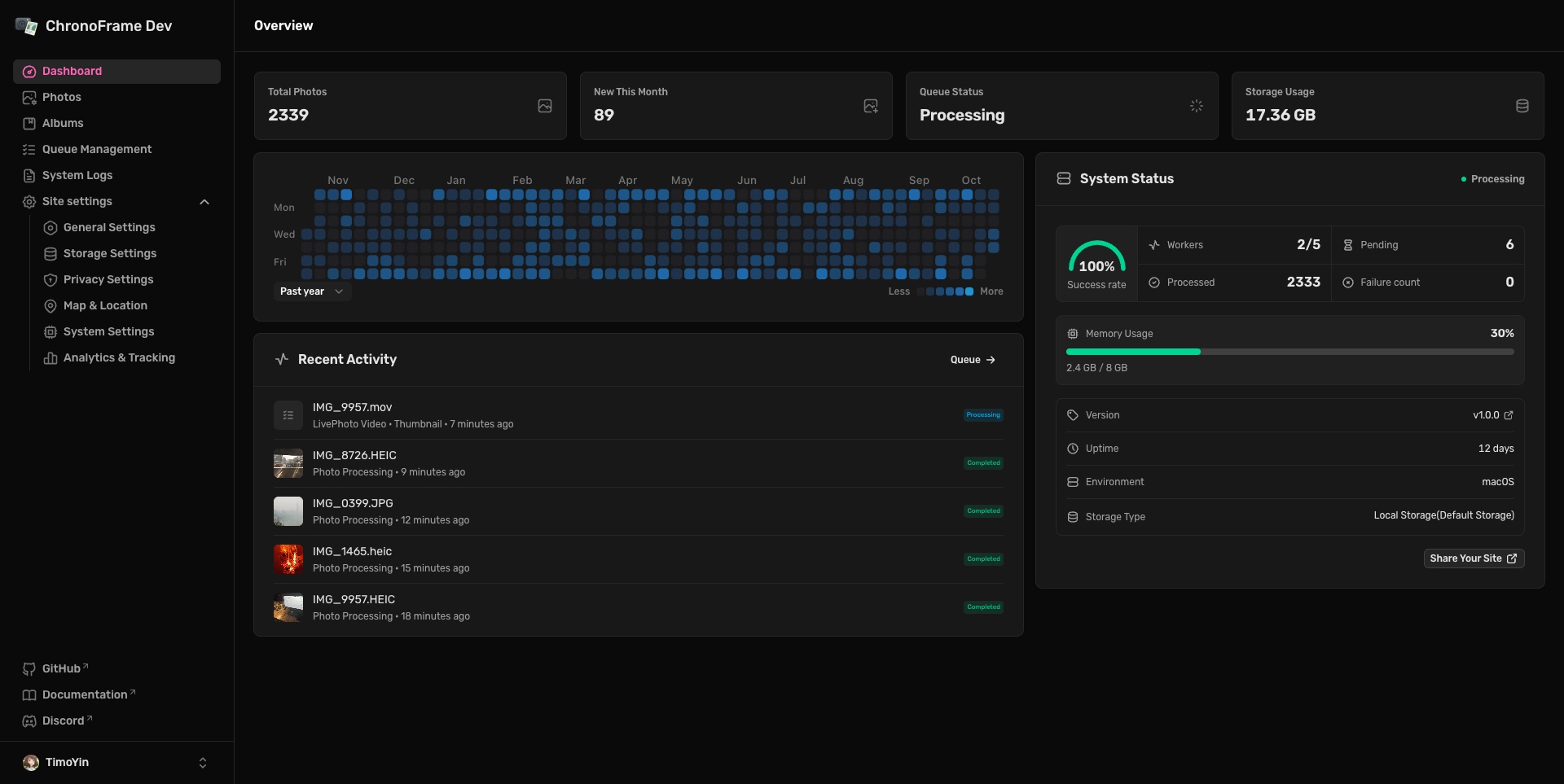
Enter the dashboard
First-visit tours
After setup, open /dashboard. On your first visit to the dashboard, photo library and settings pages, a step-by-step tour points out uploads, queues and common settings. You can skip it and reset the tours later in Site settings → System settings.
Upload your first photo
- Open Photos and select or drag in your files.
- Check Queue management while EXIF, thumbnails and location lookup finish.
- Open the gallery to check the result; inspect and retry failed tasks.
Local storage is ready to use. The service guides explain S3 credentials and CORS, OpenList URLs and tokens, and map API keys. Enter these in the dashboard, without converting them into environment variables.
Keep your data
Keep the ./data:/app/data mount. The default database is /app/data/app.sqlite3; a session secret is generated automatically and saved to /app/data/.session-password. With the local path above, originals and derived files also live under this directory.
Preserve data when updating
Keep the data directory when replacing a container. Files stored in S3 or OpenList need their own backup; a database backup alone cannot restore missing originals.
Use a domain and HTTPS
You can place Caddy, Nginx or Traefik in front of the container. Match the proxy upload limit to your dashboard setting and allow streaming responses for live logs.
Trust only your own proxy
Enable NUXT_TRUST_PROXY=true only if port 3000 is reachable exclusively through a trusted proxy that replaces client-supplied X-Forwarded-For headers. This deployment option still uses an environment variable.
For a proxy running on the host, replace the existing chronoframe service's ports and environment fields with the following. Replace 3000:3000; do not retain a publicly bound port mapping:
yaml
services:
  chronoframe:
    ports:
      - '127.0.0.1:3000:3000'
    environment:
      NUXT_TRUST_PROXY: 'true'
Keep the existing image, volumes and other service configuration. If the proxy also runs in a container, put both services on a private Docker network, proxy to http://chronoframe:3000, and remove the application service's ports mapping.
An Nginx application proxy block can look like this:
nginx
location / {
    proxy_pass http://127.0.0.1:3000;
    proxy_set_header Host $host;
    proxy_set_header X-Forwarded-For $remote_addr;
    proxy_set_header X-Forwarded-Proto $scheme;
    proxy_buffering off;
    proxy_read_timeout 300s;
    client_max_body_size 256M;
}
Next steps
Read Using ChronoFrame for uploads, albums and dashboard settings. For an existing installation, start with the update guide.